Role-Based Expense Tracking: How Admin and Member Roles Work
Compare the Admin and Member access available in Business Mode and check whether it fits your team's receipt review and export process.

Alex Chen
Product Manager & Personal Finance Advocate
Role-Based Expense Tracking: How Admin and Member Roles Work
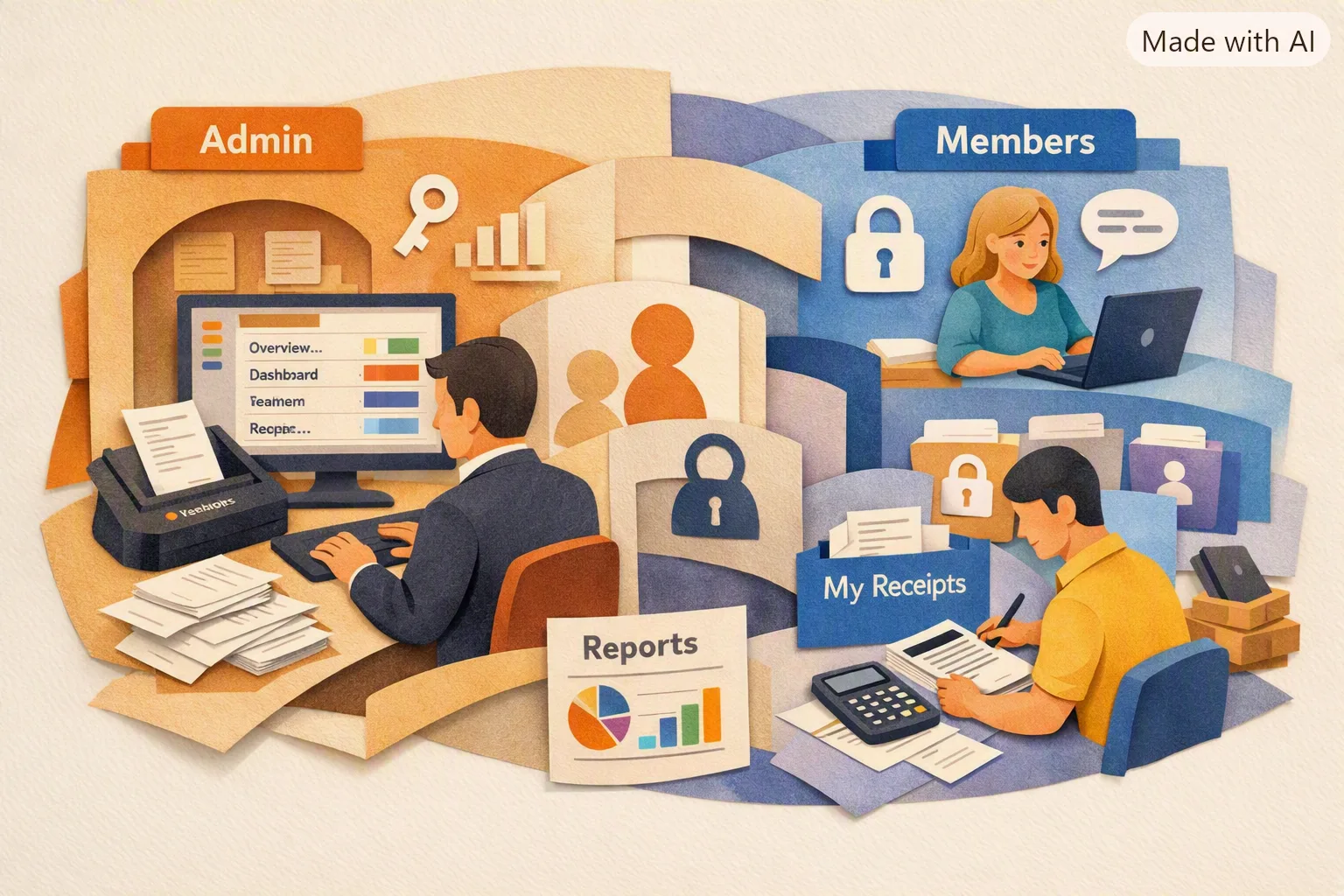
Choose a team expense tool by checking which records each role can see and change. In Yomio Business Mode, a Member can access their own expense records, while an Admin can view and export team records and manage members.
| Capability | Admin | Member |
|---|---|---|
| View own expense records | Yes | Yes |
| View other members’ expense records | Yes | No |
| Export expense records | Team records | Own records |
| Invite or manage members | Yes | No |
| Manage approval and report settings | Yes | No |
Business Mode supports up to 50 seats per group. The Admin can invite people individually or in a batch and assign Admin or Member access. The current Business Mode guide explains the setup and settings.
Check role access before inviting a team
Ask these questions before adopting a team expense workflow:
- Which roles can view, correct, or export an expense?
- Can a reviewer see the receipt image and any personal details it contains?
- Who can change roles, group settings, and approval settings?
- How do departing team members lose access?
- What records are available to each role after a person leaves?
Check the product’s current access settings and documentation; do not rely only on a marketing description. Explain access to employees before collecting expense records and review the organization’s privacy, retention, and reimbursement policies.
What role access does not decide
An Admin review does not determine whether an expense is allowable under company policy or tax law. An expense record does not prove that a reimbursement was paid. Keep the approval decision, payment record, accounting entry, and source receipt in the workflow that owns each task.
Business Mode can collect team receipt records, support optional approval, send weekly or monthly summary emails, and export expense data as CSV. It does not route approvals by custom dollar thresholds, pay reimbursements, or connect directly to QuickBooks or Xero.
Information
The right question isn't "who owns the account." It's "who needs to see whose data, by default." A small team almost always needs the answer to be asymmetric: workers see their own, one or two people see everyone's.
Tip
There's no separate "Accountant" role to configure. If your bookkeeper or accountant needs full visibility, add them as a second Admin — a Business Group isn't limited to one. They get the same team-wide view and export access as the Admin who set up billing, with nothing extra to configure.
Last reviewed: September 27, 2026.
Review Business Mode access for your team
Check the current Admin and Member roles, approval settings, reports, and export options before inviting your team.
Explore Business Mode