How to Improve a Small-Business Expense Reimbursement Process
Build a clear reimbursement workflow with a written policy, useful records, review steps, and a separate payment process.

Alex Chen
Product Manager & Personal Finance Advocate

How to Improve a Small-Business Expense Reimbursement Process
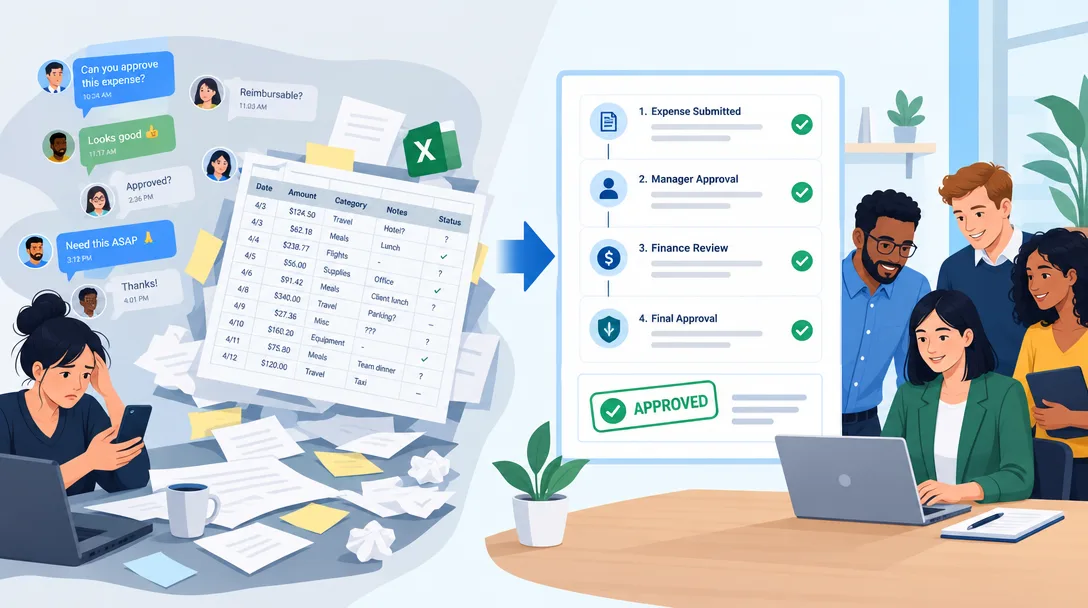
Bottom line: A reimbursement process needs a written policy, a consistent way to collect records, a person who reviews claims, and a separate payment and accounting step. An expense app can help collect receipts and route them for review, but it does not decide whether a cost qualifies for reimbursement, run payroll, or pay the employee unless it explicitly provides those services.
The workflow below helps a small team make those responsibilities clear before the next expense is submitted. Tax and employment rules vary by country, so ask a qualified local adviser to review the policy and payment method.
Start with a written reimbursement policy
Before selecting software, write down how the business wants employees to submit and managers to review expenses. Keep the policy short enough for employees to use, and include:
- Which kinds of business expenses the company may reimburse.
- What information employees must submit, such as date, merchant, amount, business purpose, and receipt when required.
- How employees submit an expense and where they can see its review status.
- Who reviews each claim and how exceptions are handled.
- How and when the business pays an approved claim.
- How records are retained and who can access them.
Do not assume that one receipt field or deadline is a legal requirement everywhere. The employer’s policy and local law determine the documentation and timing rules that apply.
For U.S. employers, the IRS explains that accountable plans require a business connection, adequate substantiation, and return of excess advances within a reasonable period. The IRS Publication 15 employer tax guide also explains that payments under nonaccountable plans can be treated as wages. These federal tax rules are specific to the United States and do not replace advice about a particular employee or expense.
Use a clear four-step workflow
1. Record the expense close to the purchase
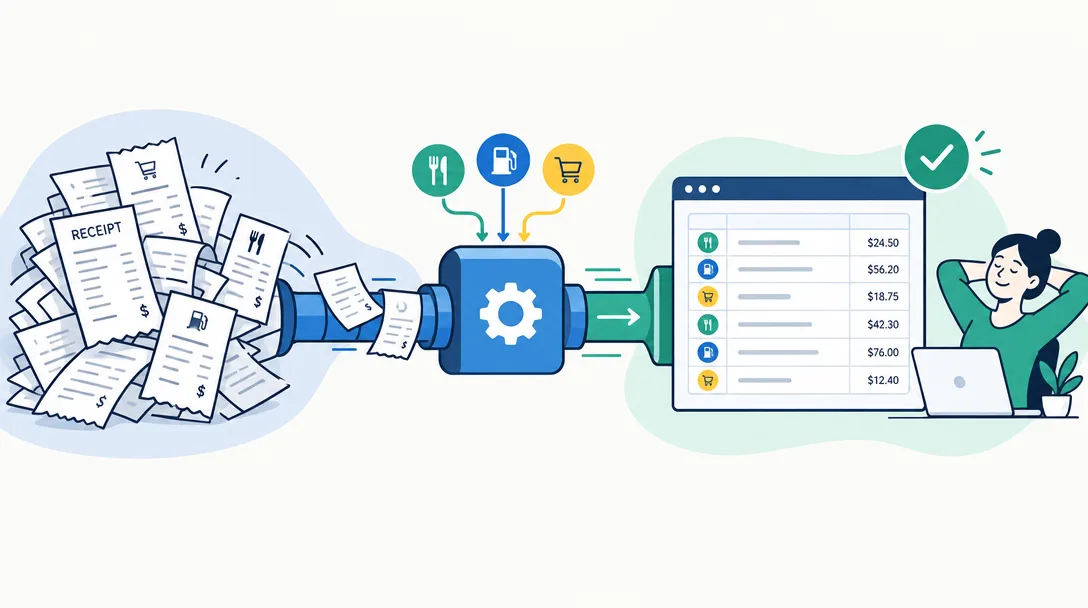
Give employees one consistent way to submit a claim. Capture the information your policy asks for while the purchase is still easy to describe. If the company requires a receipt, make sure the image or file is readable and attached to the correct claim.
The record should help a reviewer understand what was bought, when it was bought, why it was for work, and which policy applies. Avoid asking employees for details that the policy does not need.
2. Review the claim against policy
The approver checks whether the claim has the information required by the company, whether the expense has a business purpose, and whether the amount or category needs clarification. If something is missing, return the claim with a specific request so the employee can correct it.
An app’s approval button is a workflow step, not a tax decision. The person responsible for payroll or accounting must apply the employer’s policy and local rules to the final payment.
Reimbursement document checklist
Check the records you have gathered. This does not predict approval or rejection.
0 of 5 records checked
Follow your employer's current policy. Requirements vary by organization and expense type.
3. Pay the employee through the company’s payment process
Keep approval and payment distinct in the written process. The company’s payroll, accounts-payable, or other approved payment system should record when the employee was paid and how the payment was classified. Do not treat an expense tracker’s “approved” status as proof that payment has been issued.
For U.S. tax recordkeeping, IRS Publication 463 discusses substantiation and the treatment of employee expense reimbursements. The rules can depend on the type of expense and the terms of the employer’s plan.
4. Reconcile the expense record and payment record
At the end of the review period, compare approved claims with the payment and accounting records. Resolve duplicates, missing receipts, incorrect amounts, and claims that remain unpaid. Keep the supporting records in the location and for the period set by the business’s policy and applicable law.
Choose software for the part of the workflow it supports
When you compare expense tools, check whether they support the steps your written process needs. Useful questions include:
- Can employees submit receipts from the devices they use?
- Can a manager review or approve records, and can the company configure whether approval is required?
- Can the business export the records in a format its accountant can use?
- Does the product provide payment, payroll, or accounting integration, or does it only record and export expenses?
- Which roles can see an employee’s records?
For example, Yomio Business Mode supports member and admin roles, configurable approval, scheduled weekly or monthly summary reports, and CSV exports. CSV exports can be opened in accounting software, but Yomio does not provide a live QuickBooks or Xero connection, run payroll, or pay reimbursements. Review the current Business Mode details and pricing before deciding whether that recordkeeping workflow fits your company.
Keep employee access and review responsibilities clear
Tell employees which records managers can see, who can approve claims, and which system handles payment. Give each person the access needed for their role and review those permissions when responsibilities change. If a claim needs confidential handling, define a safe way to provide the required details without sharing them with the full team.
Do not promise that a tool makes a process compliant, audit-ready, or private in every situation. The company still controls its policy, access settings, retention practices, and final accounting decisions.
Before you move away from a spreadsheet
Use a short pilot to check that the process works for both employees and the person who pays claims. Choose a small number of recent expense records and follow each one from submission through review, payment, and reconciliation. Confirm that the final report can be matched to the payment system and that employees understand where to ask questions.
Make corrections to the policy and training material before asking the full team to switch. The goal is a repeatable process that works for your business, not a promised rollout time.
Warning
The process doesn't usually fail loudly — it fails quietly, as a small percentage of legitimate expenses that never get reimbursed because the receipt didn't survive the trip from pocket to spreadsheet. That's real money the business owes people and never pays, not because of bad faith, just bad process.
Tip
Export pulls the team's categorized data into one report — it doesn't remove the Admin's job of reviewing for anything that looks wrong. What it removes is the manual re-typing step that used to eat an afternoon every payday.
Collect business receipts in one team workflow
Use Yomio Business Mode to capture receipts, review records, and export team expenses. Handle reimbursement payment through your normal payroll or accounting process.
Explore Business ModeFrequently asked questions
Does expense-tracking software reimburse employees?
Not automatically. Check whether a product only records, reviews, and exports expenses or also sends payments through a connected payroll or accounts-payable system. Yomio Business Mode supports receipt records, optional approval, reports, and CSV exports; it does not pay employees.
Does approval mean that an expense is tax-deductible?
No. An approval records a step in the company’s workflow. The employer and its advisers must decide how to classify an expense under the applicable policy and law.
What information should an employee submit?
Follow the written policy and the rules that apply to the business. For U.S. employers, IRS guidance discusses the records and substantiation needed for different expenses, including arrangements under accountable plans.
Can a CSV export replace an accounting integration?
It can help transfer records, but a CSV export is not a live connection. Test the file format with the accounting workflow and confirm which fields need review before importing it.