Getting Started
Create your account and set up biometric authentication
Підписка на розсилку електронною поштою
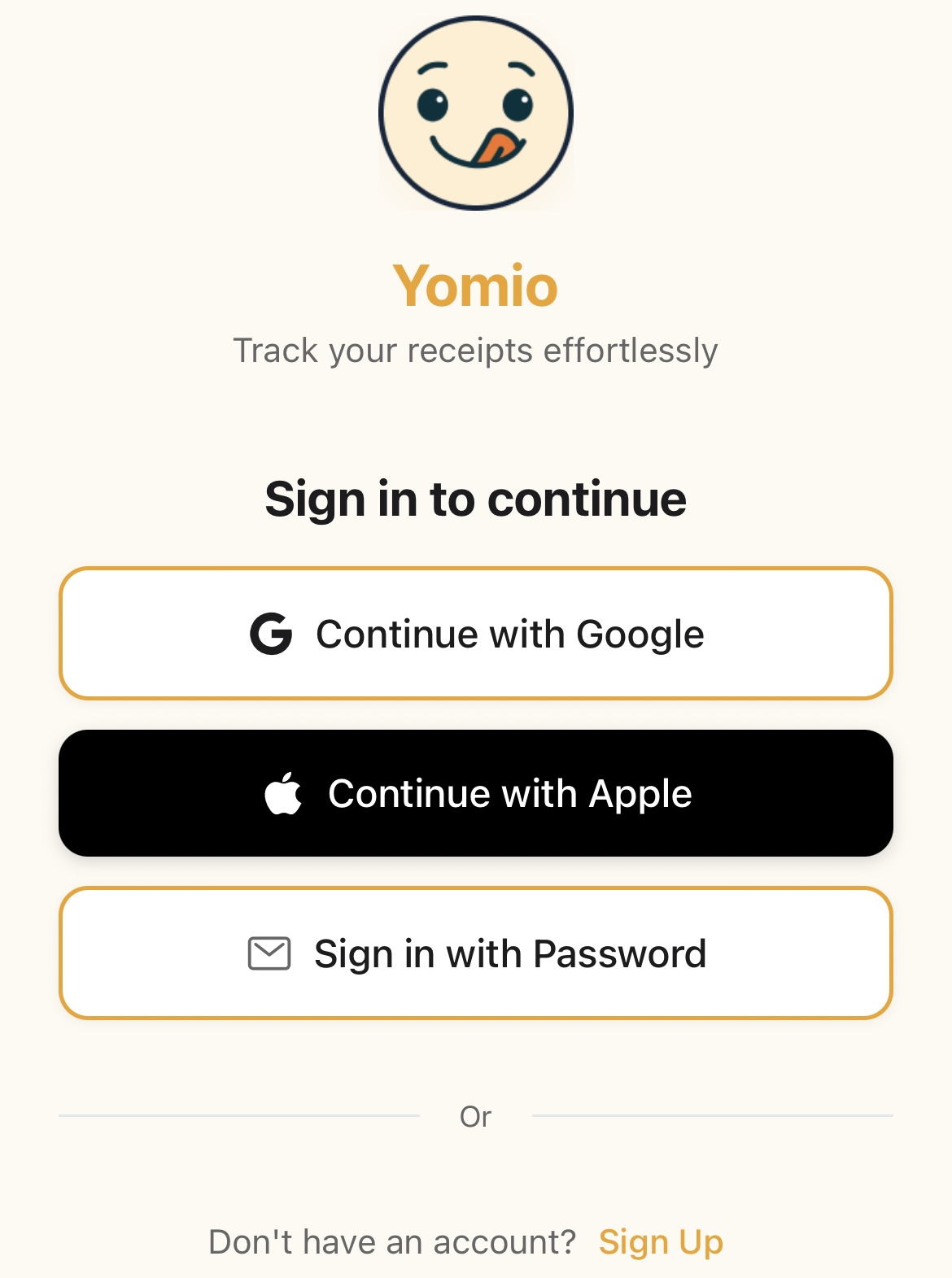
1
Open the app or web page
Запуск Yomio на вашому мобільному пристрої або перейдіть на веб-сайт
2
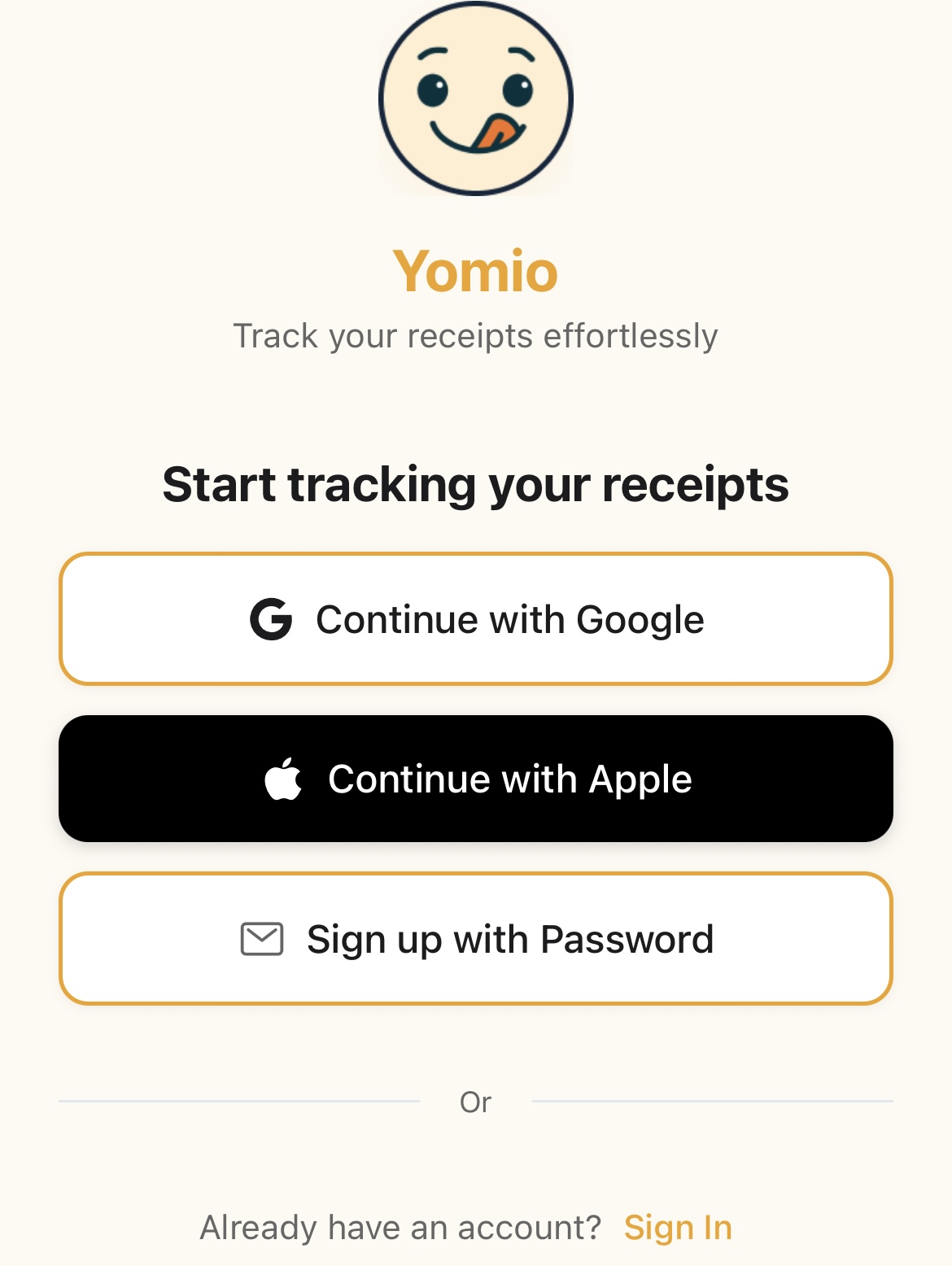
Tap 'Sign Up'
Знайдіть кнопку реєстрації на екрані привітання
3
Виберіть «Зареєструватися за допомогою пароля»
Choose the email option
4
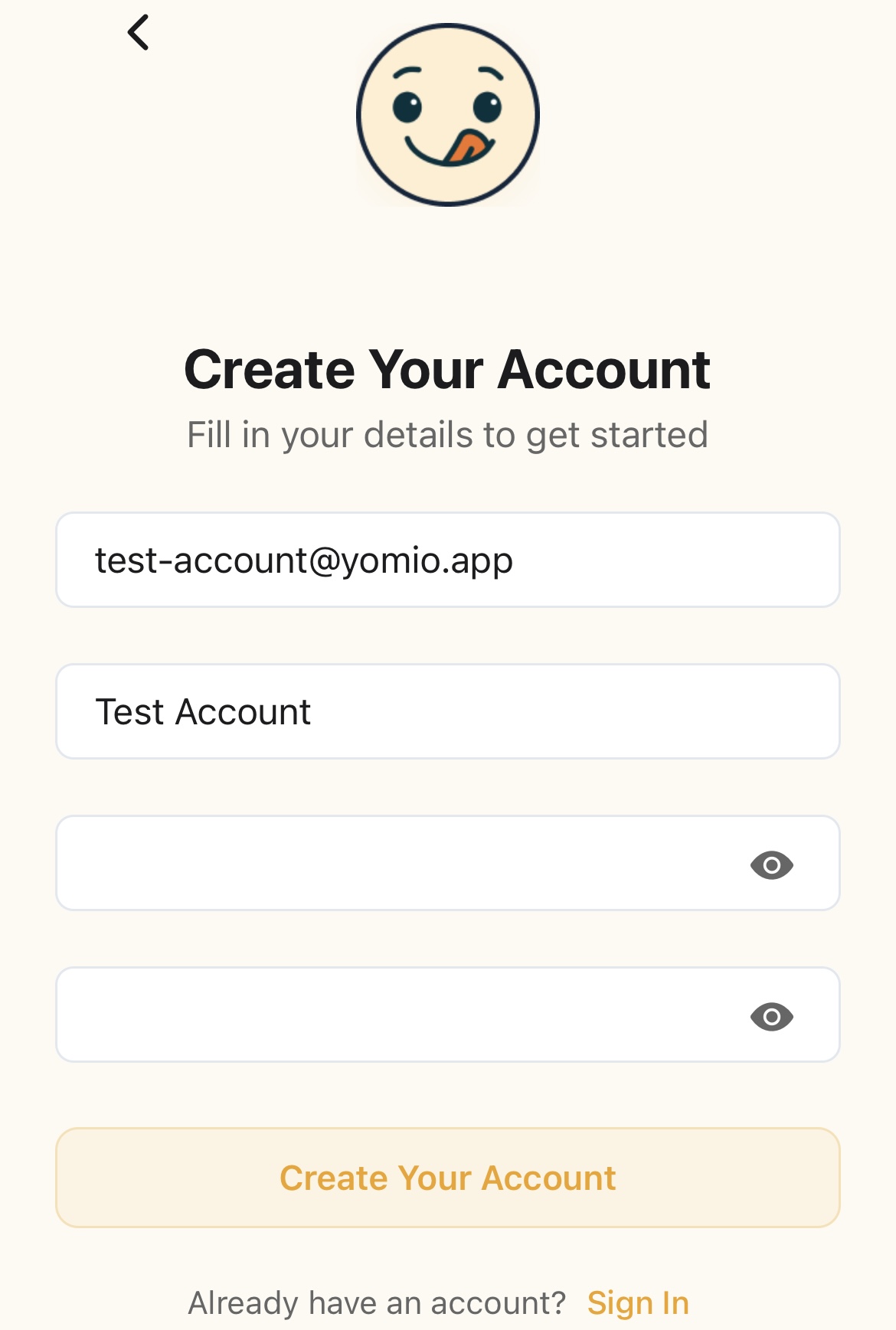
Введіть свої дані
Вкажіть свою адресу електронної пошти та створіть надійний пароль
5
Verify your email
Введіть 6-значний код підтвердження, надісланий на вашу електронну пошту
6
Повне введення в курс справи
Walk through the 5-step onboarding: welcome, document scanning intro, insights preview, preferences (currency & language), and Copilot introduction
✅Поради щодо паролів
- • Використовуйте поєднання великих і малих літер
- • Включити цифри та спеціальні символи
- • Довжина повинна становити щонайменше 8 символів
- • Avoid using easily guessable information
Підтвердження електронної адреси
Після реєстрації за допомогою електронної пошти вам потрібно буде підтвердити свою адресу електронної пошти, щоб активувати обліковий запис.
1
Перевірте свою електронну пошту
Перевірте, чи не надійшов лист від Yomio за допомогою коду підтвердження
2
Enter the code
Скопіюйте 6-значний код з електронного листа
3
Перевірте в додатку
Вставте або введіть код на екрані підтвердження
4
Ваша облікова запись підтверджено!
Your account is now fully activated
⚠️Не отримали код?
- • Перевірте папку зі спамом або небажаною поштою
- • Зачекайте кілька хвилин і перевірте ще раз
- • Tap "Resend Code" in the app if needed
- • Якщо ви не отримаєте його протягом 15 хвилин, зверніться до служби підтримки
Біометрична автентифікація
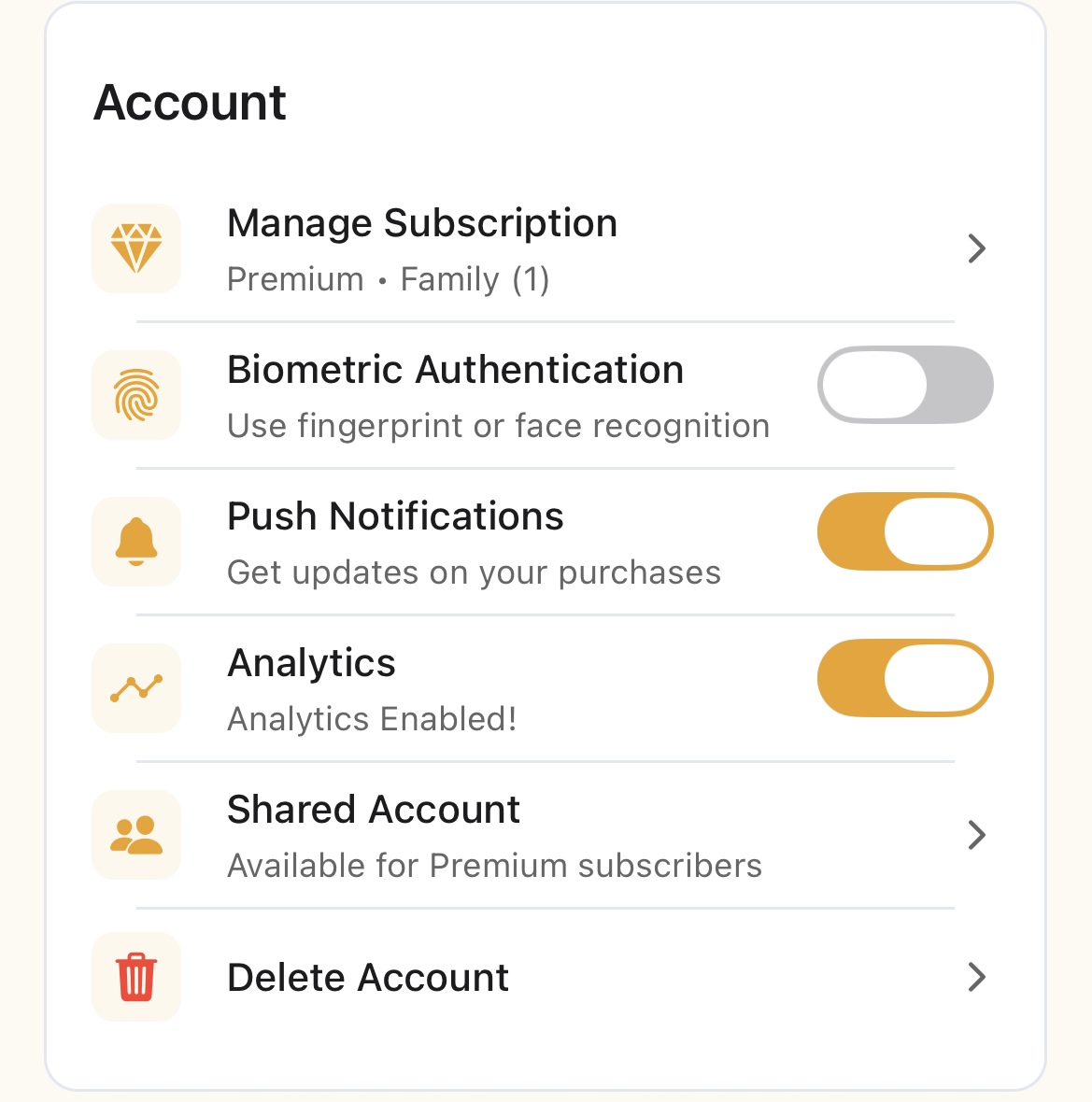
Налаштуйте розпізнавання відбитків пальців або обличчя для швидкого та безпечного доступу до вашого облікового запису.
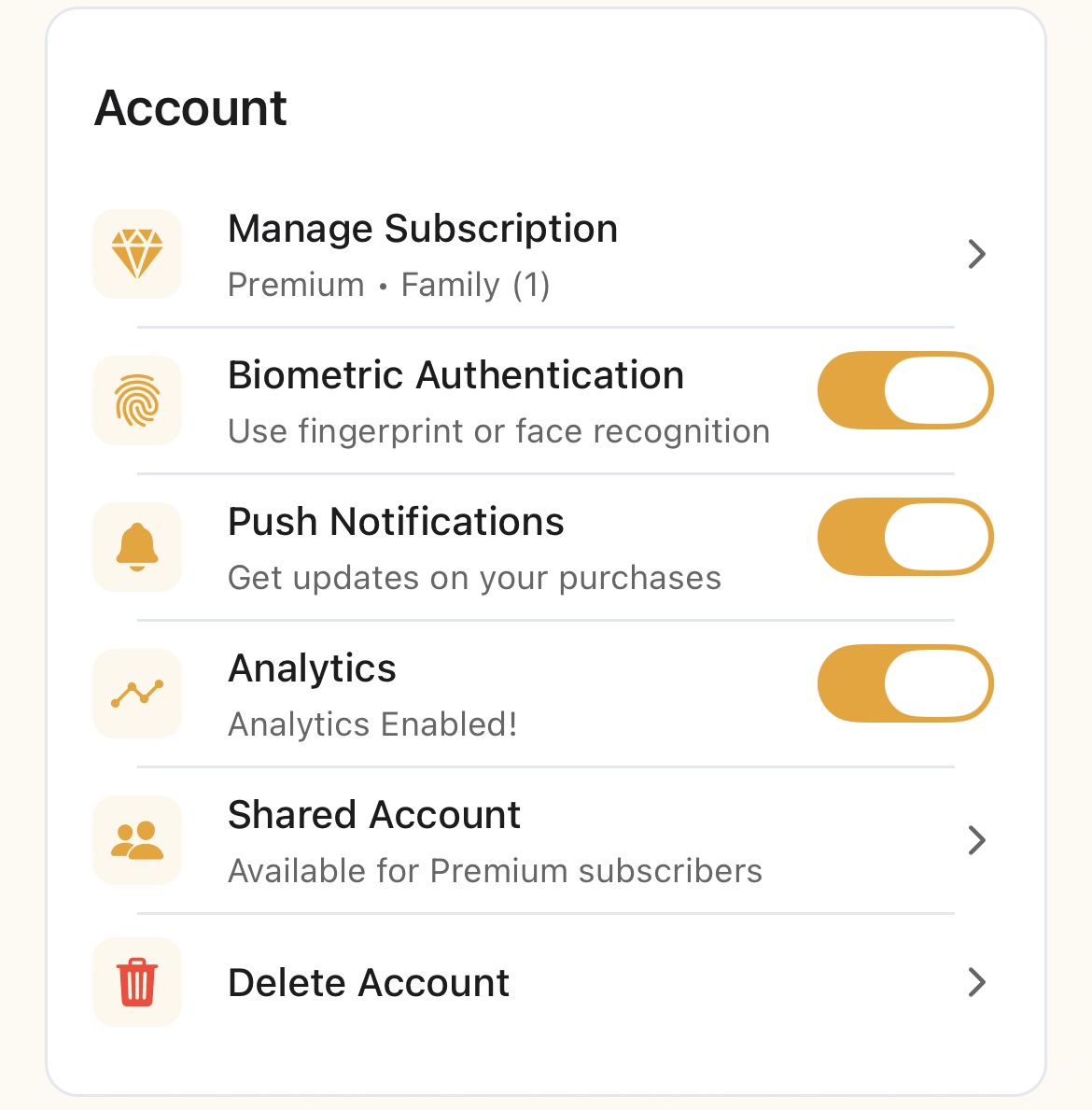
1
Перейти до налаштувань облікового запису
Натисніть на іконку свого профілю → Налаштування
2
Find Security Settings
Знайдіть розділ «Біометрична аутентифікація»
3
Увімкнути біометричний вхід
Увімкніть перемикач «Увімкнути біометричний вхід»
4
Увійти
Підтвердьте, скориставшись відбитком пальця або функцією розпізнавання обличчя
5
Ви готові
Наступного разу, коли ви відкриєте додаток, біометрична аутентифікація буде доступна
✅Коли слід використовувати біометричні дані
- • Перше використання нового пристрою
- • Щоденне відкриття та закриття
- • Коли вам потрібен швидкий доступ
- • Якщо на вашому пристрої доступна функція біометричної аутентифікації
Ваше перше сканування квитанції
Готові розпочати облік? Ось як відсканувати свій перший чек:
1
Натисніть на піктограму «Камера»
На головному екрані знайдіть іконку камери або кнопку «Відсканувати чек»
2
Зробити фото
Center your receipt in the frame and snap a clear photo
3
Нехай штучний інтелект це проаналізує
Yomio automatically extracts merchant, date, items, and total
4
Переглянути та відредагувати
Перевірте отриману інформацію та внесіть необхідні виправлення
5
Add categories
Присвоїти товарам категорії (продукти харчування, паливо, харчування поза домом тощо)
6
Зберегти
Tap save and it's added to your purchase history
✅Поради для досягнення найкращих результатів
- • Забезпечте хороше освітлення та чітку фокусування
- • Frame the entire receipt in view
- • Тримайте квитанцію рівно та прямо
- • Уникайте тіней та відблисків
- • Не скануйте вицвілі квитанції
💡Що далі?
- • Continue scanning more receipts
- • Перегляньте інформаційну панель Analytics, щоб ознайомитися з динамікою витрат
- • Explore the Managing Purchases guide for editing tips
- • Розгляньте можливість переходу на тарифний план «Преміум» для необмеженої кількості сканувань та експорту даних
Вхід через соціальні мережі
Швидко увійдіть за допомогою свого існуючого облікового запису Google або Apple.
Вхід через Google
Натисніть «Продовжити через Google»
Виберіть свій обліковий запис Google
You're in!
Вхід через Apple (iOS)
Натисніть «Продовжити з Apple»
Authenticate with Face ID or Touch ID
You're all set!
💡Переваги входу через соціальні мережі