How OCR Receipt Scanning Works: The Complete Guide
Learn how receipt OCR turns a photo into searchable text and expense fields, where errors can occur, and how to review the result.

Yulia Lit
Consumer Psychology & Behavioral Economics Researcher

How OCR Receipt Scanning Works: The Complete Guide
Receipt OCR turns an image of a receipt into machine-readable text, then software interprets that text as fields such as merchant, date, total, tax, and line items. The exact result depends on the receipt, image quality, language, and extraction model, so no single accuracy percentage applies to every scan. Review extracted values before using them for accounting or reimbursement.
The stages of receipt scanning
Receipt scanning is a pipeline, but providers combine or name its stages differently. The steps below describe the work most systems need to do; they are not a promise that every app uses the same internal design.
1. Capture or upload the document
The process starts with a photo, scanned image, or document upload. A clear, complete image gives the recognition system more useful information. Keep the receipt flat, include its edges, avoid glare and deep shadows, and check that small print is legible.
For digital receipts, an application may read selectable text directly. A scanned PDF or image still needs text recognition.
2. Recognize text
Optical character recognition (OCR) locates text in the image and converts it into characters or words. Some systems also return layout information, such as text lines, bounding boxes, and confidence values. OCR identifies text; it does not by itself know which number is the total or which text names a purchased item.
3. Extract receipt fields
An extraction model uses layout and learned patterns to map recognized text to fields. For example, Microsoft’s Document Intelligence receipt model can return structured receipt data, including merchant details, transaction date, taxes, total, and line items. Other providers expose their own schemas and supported fields.
This step can be difficult when a receipt uses abbreviations, unusual columns, discounts, multiple tax lines, or a layout the model handles poorly. An item description can also be read correctly while being assigned to the wrong price or field.
4. Normalize and check the result
An expense app may convert dates and amounts into its internal format, apply a currency, and check whether fields are present or internally consistent. These checks can flag problems, but they cannot prove that every extracted value matches the paper receipt.
For example, a total that differs from the sum of item prices may need review because receipts can include discounts, deposits, tips, or other adjustments. Keep the original receipt available when you need to verify a record.
5. Review and save
The final step is a user or workflow review, followed by saving the data to an expense record or another system. Correct the merchant, date, amount, currency, tax, or item details when they do not match the receipt. For business records, follow the review and approval rules that apply to your organization.
Document workflow overview
Explore common document steps
Select a step to see a general description. Document tools can use different processes.
Capture or upload
Create an image or provide a digital file. Image quality can affect what is readable.
This is a general explanation, not a description of every product's implementation.
How Yomio processes a receipt
Yomio's current receipt workflow uses Azure Document Intelligence's prebuilt receipt model. Its backend parser maps recognized merchant details, date, totals, currency, and line items into an expense record. The parser can flag missing fields or totals that do not reconcile, but extracted data may still need correction. The current model fields are documented by Microsoft.
Why scans can be wrong
Common causes include a cropped receipt, motion blur, glare, faded print, small or faint text, folds across a line, unusual abbreviations, and a layout the model does not interpret well. Handwriting, multiple languages, and local number formats can also affect the result. Provider documentation describes the input limits and language support for each model; check those details against the receipts you need to process.
The best way to compare providers is to try the current models on a representative sample of your own receipts. Include ordinary receipts and the difficult cases that matter to your workflow, then check each required field against the original. Do not compare products using an accuracy figure unless the vendor or evaluator explains the test set, metric, and conditions. NIST's AI measurement guidance says accuracy measures should use realistic, representative test sets and document the test method.
OCR and receipt extraction are different
OCR changes pixels into text. Receipt extraction assigns meaning to that text, such as identifying the merchant, date, subtotal, tax, total, and purchased items. An OCR engine can read a receipt line correctly while a separate extraction step still maps the value incorrectly.
For a provider comparison, see receipt OCR APIs for developers. For a list of data fields that an app may capture, see OCR receipt data extraction.
Information
Use even light, keep the receipt flat, and frame the printed text clearly. A sharp image gives an OCR system readable input, but no image setting guarantees correct extraction.
Warning
Thermal paper can fade over time, and missing or damaged print may not be recoverable from an image. If a receipt matters for your records, make a clear copy while the text can still be read and keep it according to your retention needs.
Tip
Small or blurred characters can be hard to distinguish in a scan. Review totals, dates, and item details against the original receipt when the extracted text matters.
Success
Text recognition can make a receipt easier to search and review, but it does not verify the result. Check important fields such as the merchant, date, total, tax, and line items before you rely on them.
Keep receipt details with your expenses
Scan a receipt, review its extracted information, and organize the purchase in Yomio.
Download YomioFrequently asked questions
How accurate is receipt OCR?
There is no useful universal percentage. Results vary by model, receipt type, image quality, language, and the metric used. Test representative receipts and measure the fields your application needs.
Can OCR read a faded or damaged receipt?
It may recover some text, but it cannot reconstruct characters that are no longer visible. Take a clear photo while the receipt is legible and keep the original until you have checked the saved record.
Can I scan a digital receipt?
Yes, if the app accepts its file type. When the file contains selectable text, software may read that text directly; image-only files still require OCR.
What is the difference between OCR and receipt scanning?
OCR recognizes text in an image. Receipt scanning usually adds document capture, field extraction, validation, and saving the result to an expense record.
Should I trust an extracted total without checking it?
Review it against the receipt, especially before using the record for reimbursement, bookkeeping, or tax records.
More from Yomio

OCR Receipt Scanner: How to Digitize Receipts
Compare receipt scanning workflows and what to review after a scan.
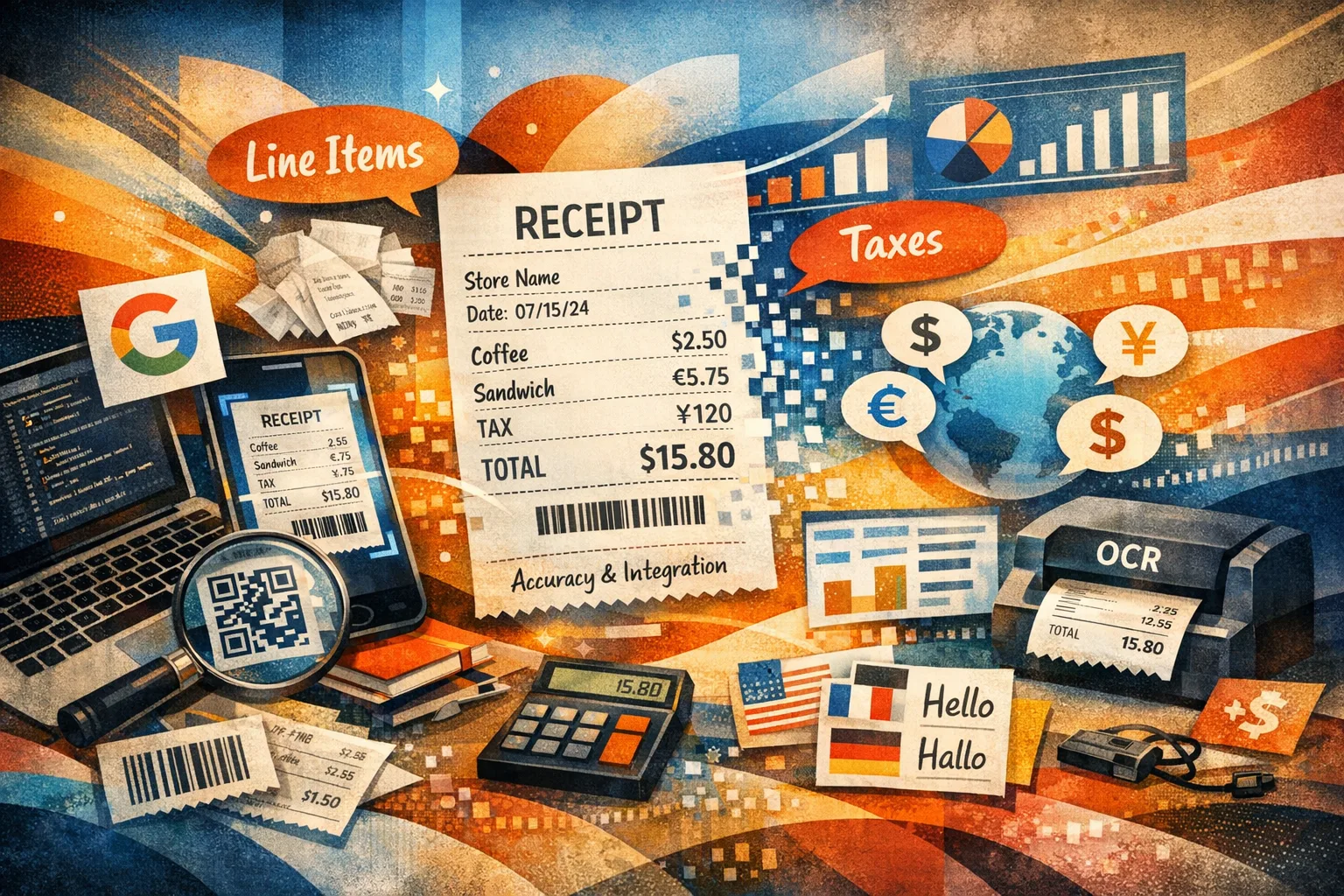
OCR Receipt Data Extraction: What Can Actually Be Captured
Learn which receipt fields may be extracted and where results need review.
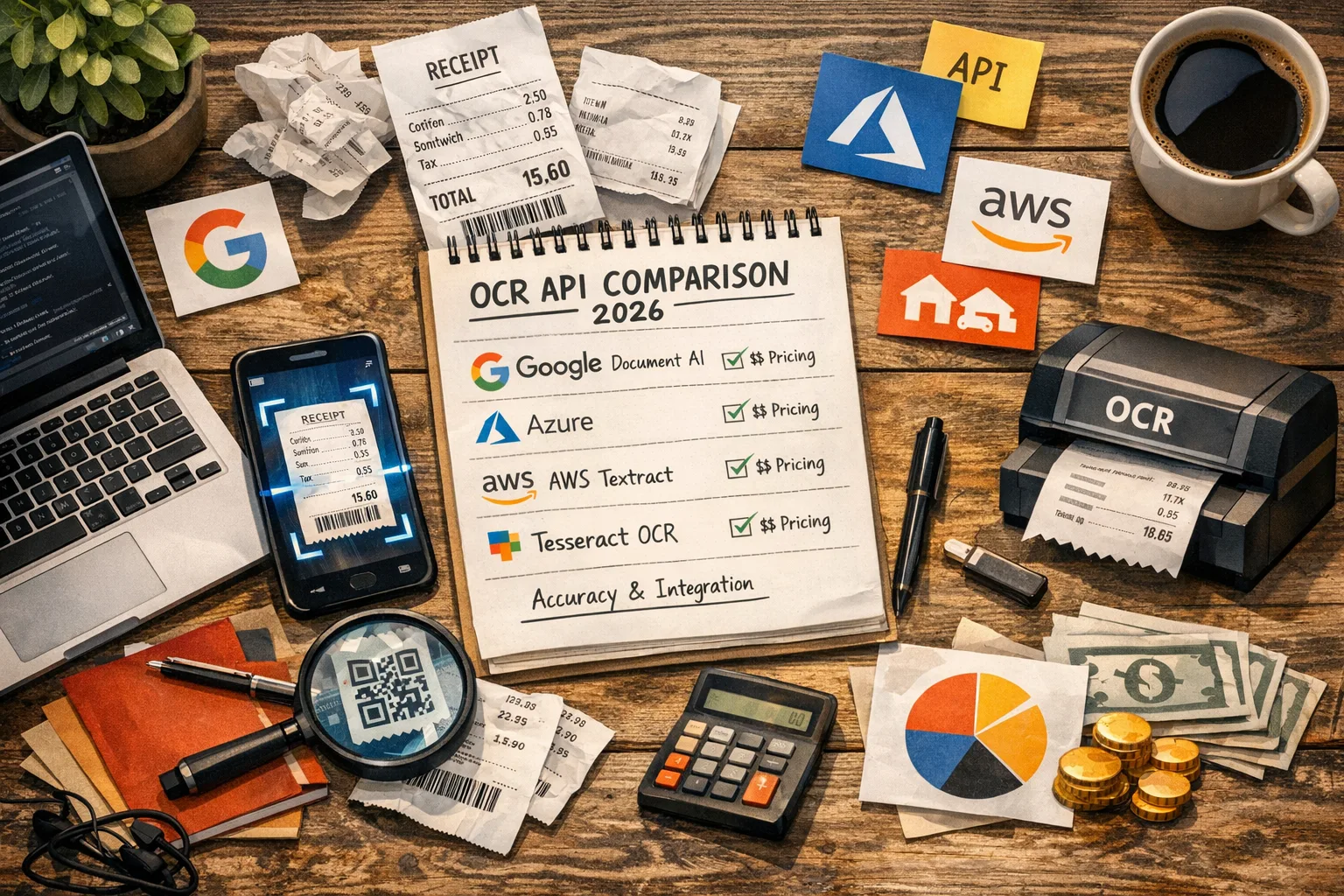
OCR Receipt Scanner API Comparison
Compare vendor documentation and evaluation criteria for receipt OCR APIs.
Spending Blindness: Why You Can't See Where Your Money Goes
Practical ways to record and review your spending.